Using AI to create an audio driver using an audio feedback loop

I wanted a simple thing: when a package arrives at my door, play a sound effect through the nearest security camera’s speaker. What followed was a deep debugging session involving RTSP backchannels, AAC frame pacing, and spectrogram analysis. Here’s how I got it working.

The Setup

I run about 15 Dahua and Lorex IP cameras around my property, managed through Home Assistant with the Dahua custom integration (installed via HACS). Several cameras have built-in speakers, and the integration exposes them as media_player entities. The goal: trigger a “Hallelujah” sound effect on the camera that detects a package.

Problem 1: No Sound At All

The first attempt produced silence. The media_player.play_media service call completed without errors, but nothing came from the speaker. Time to investigate.

Checking the Hardware

First, verify the camera actually has a speaker:

curl -s --digest -u admin:PASSWORD 
  "http://CAMERA_IP/cgi-bin/devAudioOutput.cgi?action=getCollect"
# result=1 means speaker is present

Speaker confirmed. Next, check if audio encoding is enabled on the camera—a prerequisite for the RTSP backchannel:

curl -s --digest -u admin:PASSWORD -g 
  "http://CAMERA_IP/cgi-bin/configManager.cgi?action=getConfig&name=Encode[0].MainFormat[0]" 
  | grep AudioEnable

AudioEnable=false. That’s the problem. Without audio encoding enabled, the camera won’t advertise a backchannel audio track in its RTSP DESCRIBE response. No backchannel means no speaker output.

The Fix

curl -s --digest -u admin:PASSWORD -g 
  "http://CAMERA_IP/cgi-bin/configManager.cgi?action=setConfig
  &Encode[0].MainFormat[0].AudioEnable=true
  &Encode[0].ExtraFormat[0].AudioEnable=true"

After enabling audio, the RTSP DESCRIBE response now includes a sendonly audio track (trackID=5), which is the ONVIF backchannel the integration uses to send audio to the speaker.

I added detection for this condition to the integration—it now logs a warning at startup if audio encoding is disabled, and provides an enable_audio service on the media player entity to fix it without manual curl commands.

Problem 2: Audio Plays, But Sounds Terrible

With audio encoding enabled, sound came out of the speaker—but it was a garbled mess, compressed into a brief burst. To diagnose this properly, I needed data, not just ears.

Spectrogram-Based Debugging

I set up a recording pipeline: play audio on one camera’s speaker while recording from a nearby camera’s microphone, then generate spectrograms for visual comparison.

Source File

First, I generated a C major scale test tone—its staircase frequency pattern is easy to identify in spectrograms:
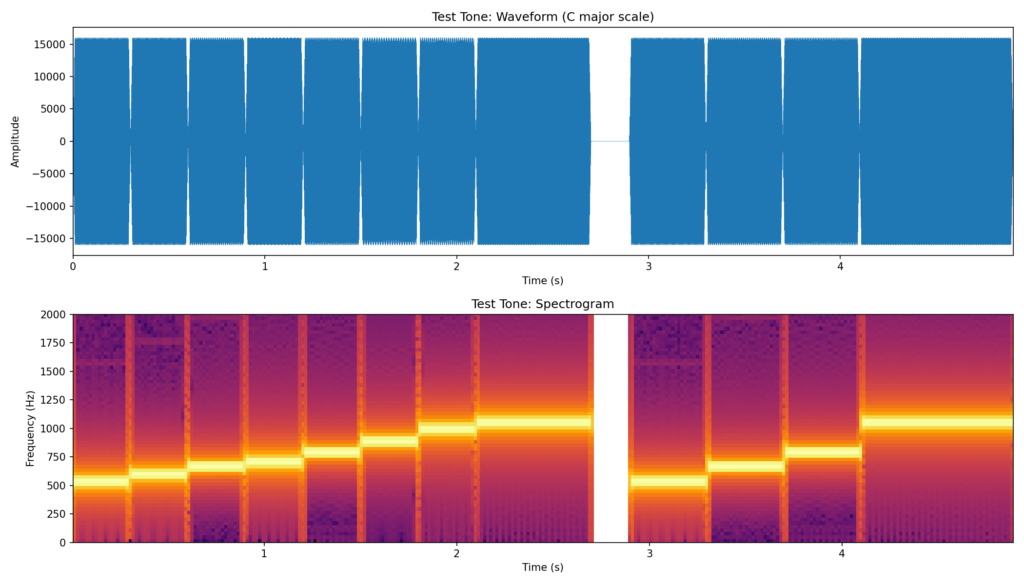
Test tone spectrogram showing C major scale staircase pattern
Source test tone: a C major scale with clear staircase frequency steps. Each note is distinct in the spectrogram.

Baseline: AirPlay Speaker

For reference, I played the Hallelujah sound effect through a high-quality AirPlay speaker (“Deck”) and recorded it on a nearby camera:
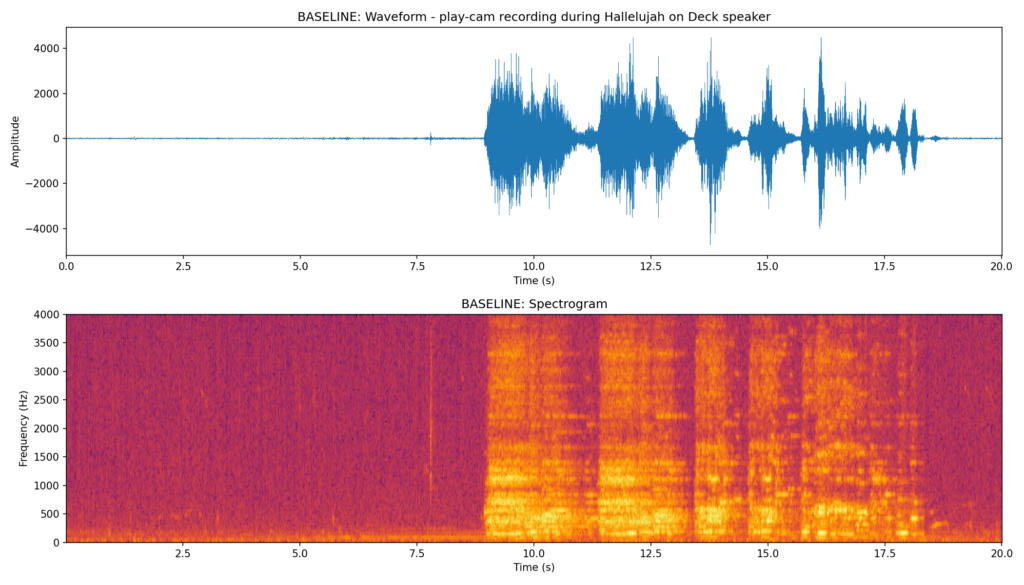
Baseline spectrogram from AirPlay speaker showing clean harmonic content
Baseline recording: Hallelujah played through an AirPlay speaker. Clear harmonic bands, good dynamic range.

Attempt 1: Through the Camera (Broken)

Here’s what the camera speaker produced with the original code:
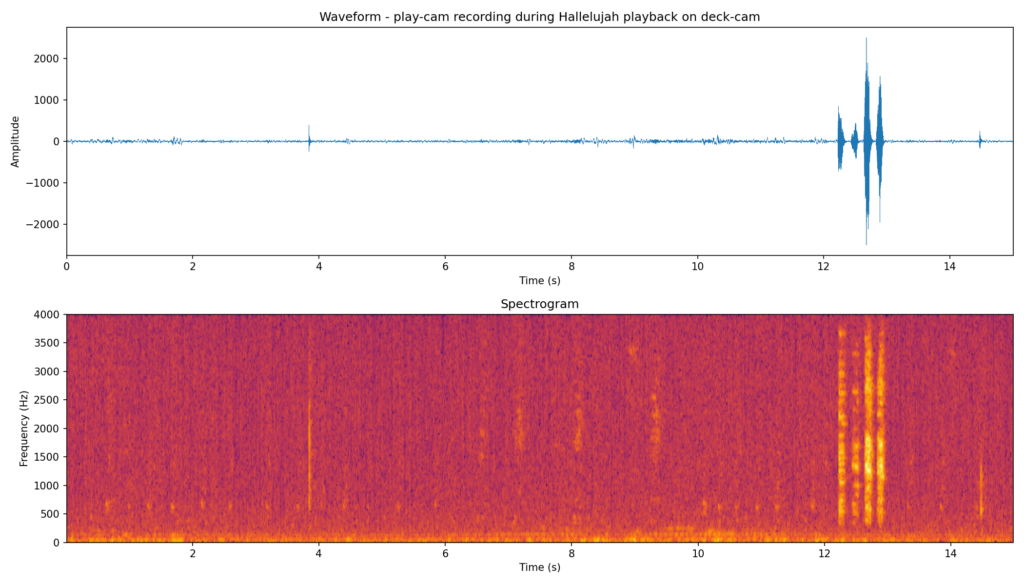
Broken playback spectrogram showing compressed audio burst
First camera attempt: all audio compressed into a ~2 second burst at the end. The spectrogram shows broadband noise instead of harmonic content.

The entire clip was being dumped in a short burst. Clearly a pacing issue.

Attempt 2: After Reboot (Still Broken)
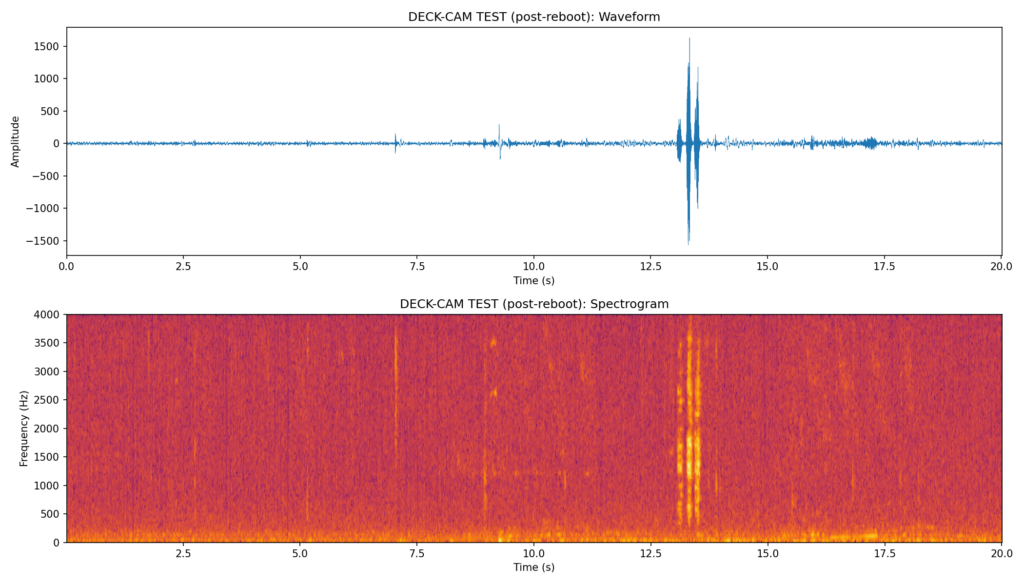
Post-reboot spectrogram still showing compressed audio
After camera reboot with audio enabled: still garbled. The pacing issue is in the software, not the camera.

Finding the Root Cause

The integration converts audio to AAC (8 kHz mono, 1024 samples per frame) and sends it via RTSP backchannel. The frame pacing code calculated the interval as:

frame_interval = duration / len(frames)

The problem: when audio is piped through ffmpeg (which is how the HA integration converts media files), ffmpeg doesn’t report a Duration: for piped input. So duration = 0, and frame_interval = 0. Every frame was sent instantly.

The Fix: Fixed Frame Interval

AAC at 8 kHz uses 1024 samples per frame. That’s a fixed interval:

frame_interval = 1024.0 / 8000.0  # 0.128 seconds per frame

No need to parse duration at all. Each AAC frame represents exactly 128ms of audio.

RTSP Backchannel Test (Fixed Pacing)

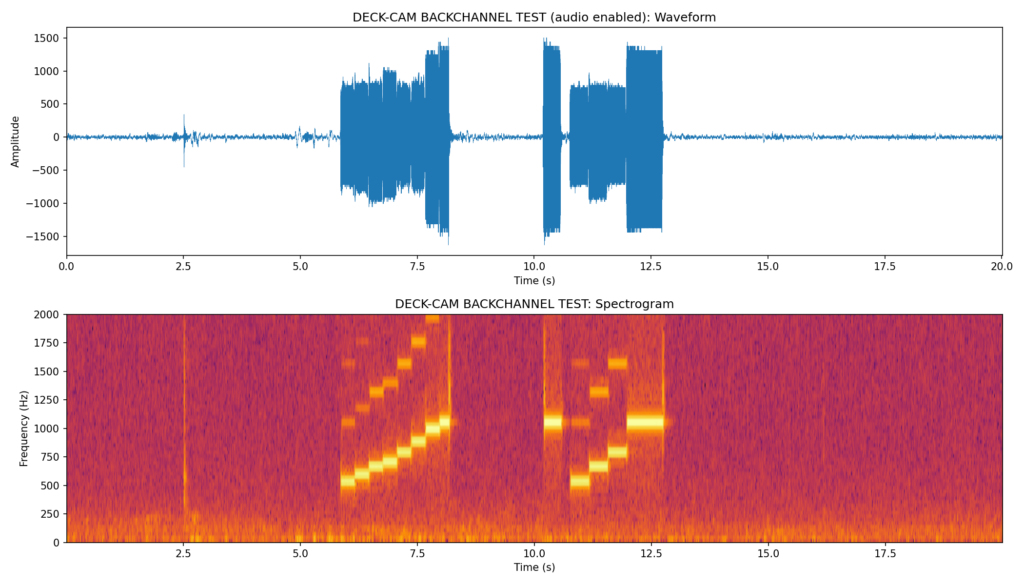
Testing with the test tone through the RTSP backchannel directly, with correct 128ms pacing:
Fixed backchannel test showing clear staircase frequency pattern
RTSP backchannel with fixed 128ms pacing: the C major staircase is clearly visible. Clean, correctly-timed playback.

The staircase pattern is clearly visible—each note is distinct and properly timed.

Side-by-Side Comparisons

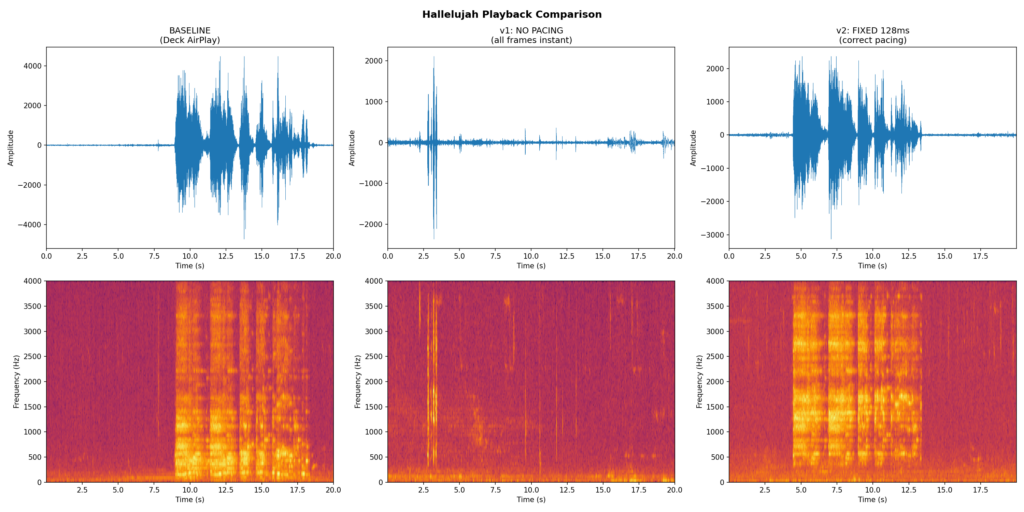
Here’s the before and after with the actual Hallelujah sound effect:
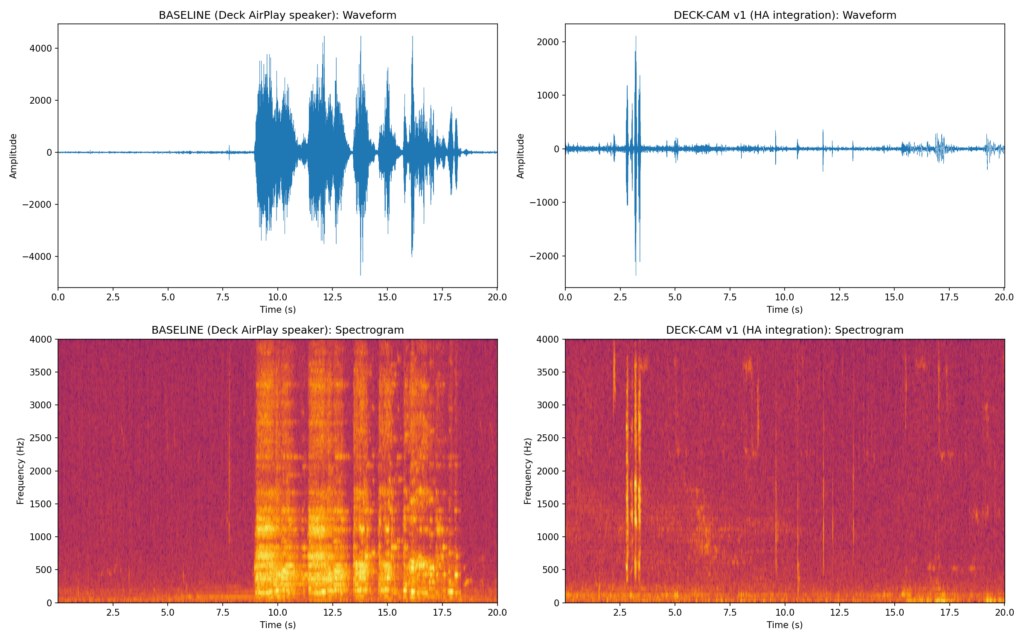
Side-by-side comparison of baseline AirPlay vs broken camera playback
Left: Baseline (AirPlay speaker). Right: Camera with broken pacing (v1). The camera version is compressed into a brief burst with no harmonic structure.
Three-way comparison showing baseline, broken, and fixed playback
Three-way comparison. Left: Baseline (AirPlay). Center: v1 with no pacing (all frames instant). Right: v2 with fixed 128ms pacing. The v2 spectrogram closely matches the baseline’s harmonic structure.

The v2 fix (right panel) closely matches the baseline (left panel). The harmonic content is clearly visible and properly spread across the full duration of the clip.

The Integration Changes

I contributed these fixes back to the Dahua integration:

  1. Fixed RTSP backchannel frame pacing: Use the mathematically correct 128ms interval (1024 samples / 8000 Hz) instead of trying to derive it from ffmpeg’s duration output.
  2. Audio encoding detection: At startup, the integration checks if AudioEnable is set on the camera’s encode config and logs a warning if not.
  3. enable_audio service: A new Home Assistant service on media player entities that enables audio encoding on the camera without needing to use curl or the camera’s web UI.
  4. Lorex compatibility: Lorex cameras (Dahua OEM) don’t support the audio.cgi HTTP endpoint. The integration detects this and falls back to RTSP backchannel automatically.

The Automation

With working speaker audio, the automation is straightforward. Each camera that can detect packages triggers the sound on its own speaker, throttled to once per hour per camera:

automation:
  - alias: Package Arrived play sound
    triggers:
      - entity_id: sensor.front_entry_package_count
        above: 0
        trigger: numeric_state
        id: front_entry
      - entity_id: sensor.garage_l_package_count
        above: 0
        trigger: numeric_state
        id: garage_left
      # ... more cameras
    actions:
      - condition: template
        value_template: >-
          {{ now().timestamp() - last_played > 3600 }}
      - action: media_player.play_media
        target:
          entity_id: "{{ speaker }}"
        data:
          media_content_id: media-source://media_source/local/Hallelujah-sound-effect.mp3
          media_content_type: music

Lessons Learned

  • Spectrograms are invaluable for audio debugging. They immediately show whether the problem is pacing, encoding, distortion, or something else entirely.
  • Record from a second camera to capture what the speaker actually outputs, rather than relying on subjective listening.
  • Fixed-interval pacing is more robust than duration-based calculation for streaming protocols. The math is simple: samples_per_frame / sample_rate = interval.
  • Check audio encoding first. On Dahua/Lorex cameras, the speaker won’t work unless AudioEnable=true in the encode config. This setting persists across reboots.
  • Lorex quirks: Lorex cameras are Dahua OEM but have different firmware. They don’t support audio.cgi but do support RTSP ONVIF backchannel. Some have flaky HTTP servers after soft reboots.

The complete code changes are in the Dahua integration fork, and the manual testing scripts (spectrogram generation, recording, analysis) are in the manual_tests/ directory.
Object detection on Jetson Nano

I’ve been learning about AI and computer vision with my Jetson Nano. I’m hoping to have it use my cameras to improve my home automation. Ultimately, I want to install external security cameras which will detect and scare off the deer when they approach my fruit trees. However, to start with I decided I would automate a ‘very simple’ problem.

Take out the garbage reminder

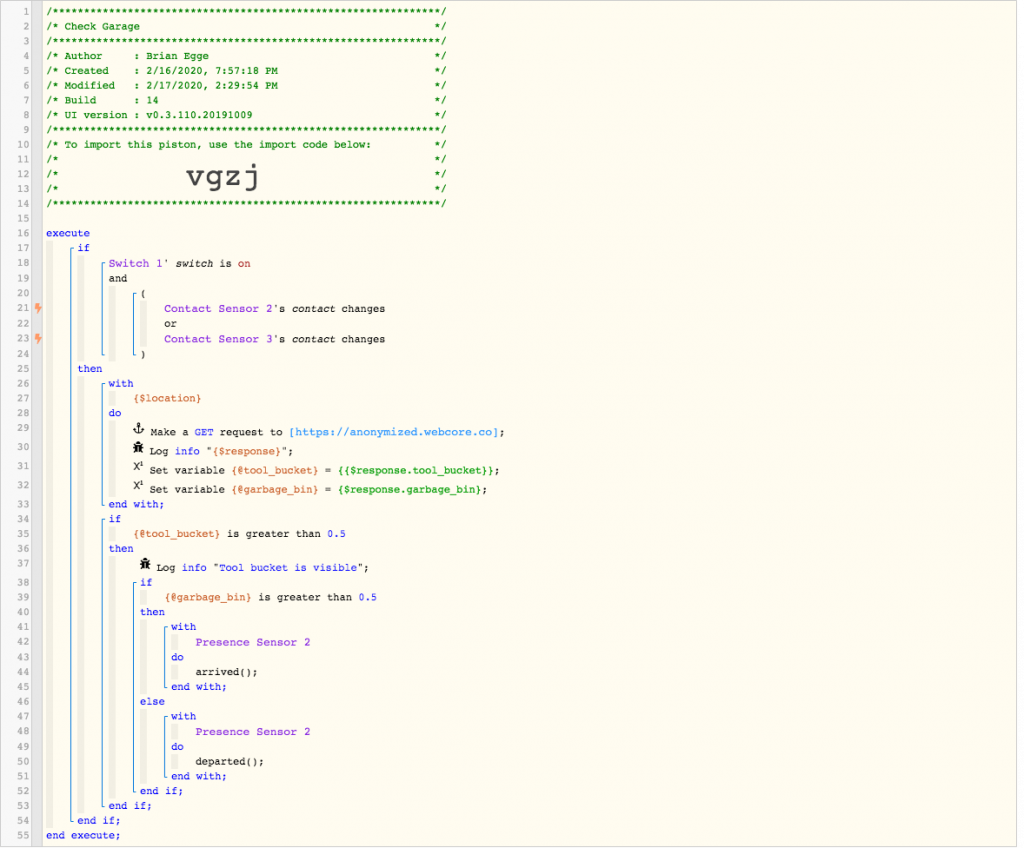
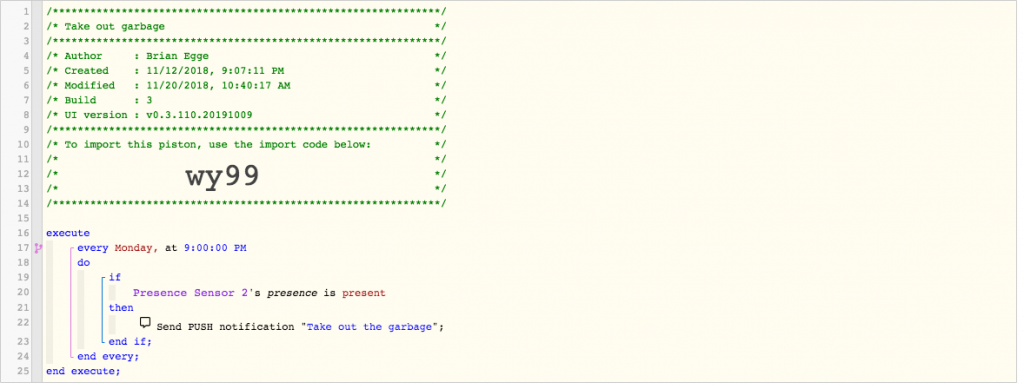
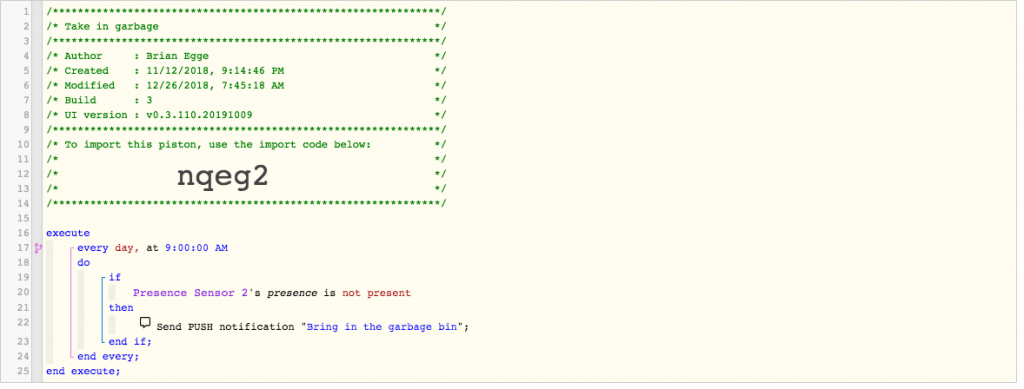
I have for some time had a reminder to bring out the garbage, to bring it in, and a thank you message once someone brings it in. This is done with a few WebCore pistons:

In order to decide if the garbage is in the garage or not I’ve attached a trackr tile which is detected by my Raspberry Pi 3. Unfortunately, if the battery dies or gets too cold it’s stops working. I could attach a larger battery to the tile, but it needs to be attached to my bin, so I don’t want something too big. So decided it should be trivial to have a camera learn if the garbage bin is present and then update the presence in SmartThings. It took me but a few minutes to train an object classification on https://teachablemachine.withgoogle.com/, so I thought this was doable.

First I mounted a USB camera to the ceiling in the garage and attached to the Raspberry Pi. I then spent a few days learning how to access the camera, and my options to stream from it, etc.. ultimately, I decided to use fswebcam to grab the images.

fswebcam --quiet --resolution 1920 --no-banner --no-timestamp --skip 20 $image

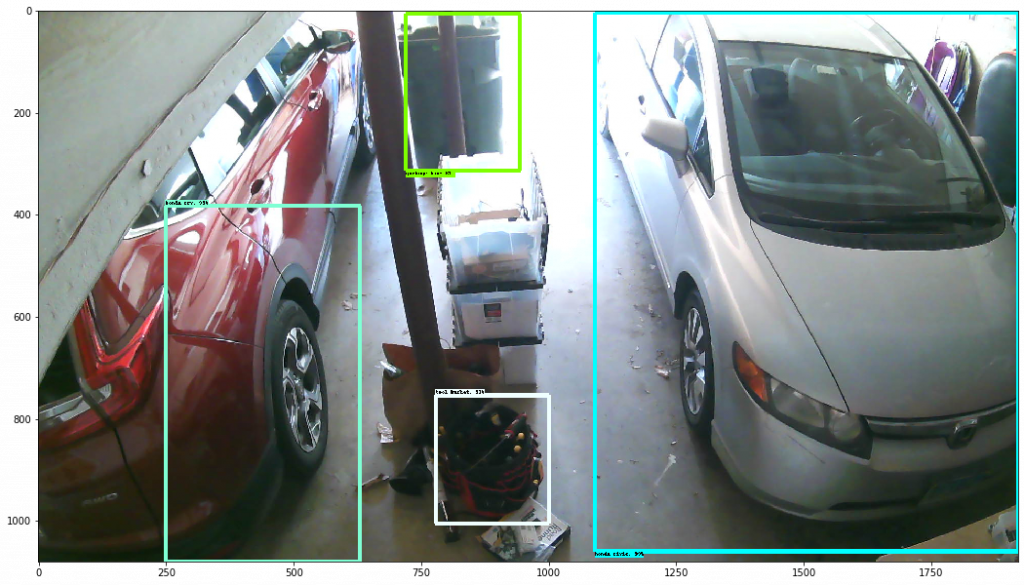
Once I had a collection of images, I installed labelImg on my nano. This is because for this project I didn’t just want to do image classification but object detection. In hindsight, it would have been much simpler to crop my image to the general area where the bins reside and then train an object detector.

After assembling about 20 images I then copied around scripts to create all the supporting files for TensorFlow. I went from text to csv to xml to protocol buffers. In the end, I had something ready to train. I attempted to train on the Nano, but soon came to the realization it was never going to work. My other PCs don’t have a modern GPU for running AI tasks, so my hope was to get it to work the with Nano. I learned about renting servers but that was going to add costs and complications. I then learned about Google Colab, which (for now), gives you free runtimes with a good GPU or TPU. Once running you’ll find out what kit your runtime has. I’ve gotten different hardware on different runs. My last run used the Tesla P100-PCIE-16GB. That’s a $5,000 card which not even NVidia is going to let me try out for free.

It look me a long time to get the pieces together in one notebook to be able to train my model. Certainly not the drag and drop of the Teachable Machine.

One thing which helped a lot was tuning the augmentation items. I know the camera is fixed so I don’t need to have it flip or crop the image. Since the garage has windows the lighting can change a lot depending on the time of day. I didn’t setup TensorBoard, but it quickly goes from 0.5% loss after a few steps. I have a small sample and a fixed camera, which helps.

  data_augmentation_options {
    random_adjust_brightness {
    }
  }
  data_augmentation_options {
    random_adjust_saturation {
    }
  }

Once running in the notebook I then spend another few days getting the model to run on my Jetson Nano. NVidia did not make this easy. Ultimately, I downgraded to TensorFlow 1.14.0 and patched one of the model files. Eventually I got it running, then I just needed to get it to work with SmartThings. Since the bins are really only going to move when the garage doors open, I don’t need to do this detection in real time. I want WebCore to query the garage when it detects the doors open or close. I have it do this by querying a web service on my Raspberry Pi:

On the Raspberry Pi, I want it to snap an image, and send it to the Jetson for analysis. I wrote the world’s dumbest web service, installing it with inetd:

#!/bin/sh

0<&-
image=$(mktemp /var/images/garage.XXXXXXX.jpg)

/bin/echo -en "HTTP/1.0 200 OK\r\n"
fswebcam --quiet --resolution 1920 --no-banner --no-timestamp --skip 20 $image
/bin/echo -en "Content-Type: application/json\r\n"

curl --silent -H "Tranfer-Encoding: chunked" -F "file=@$image" http://egge-nano.local:5000/detect > $image.txt
/bin/echo -en "Content-Length: $(wc -c < ${image}.txt)\r\n"
/bin/echo -en "Server: $(hostname) $0\r\n"
/bin/echo -en "Date: $(TZ=GMT date '+%a, %d %b %Y %T %Z')\r\n"
/bin/echo -en "\r\n"
cat $image.txt
chmod a+r $image

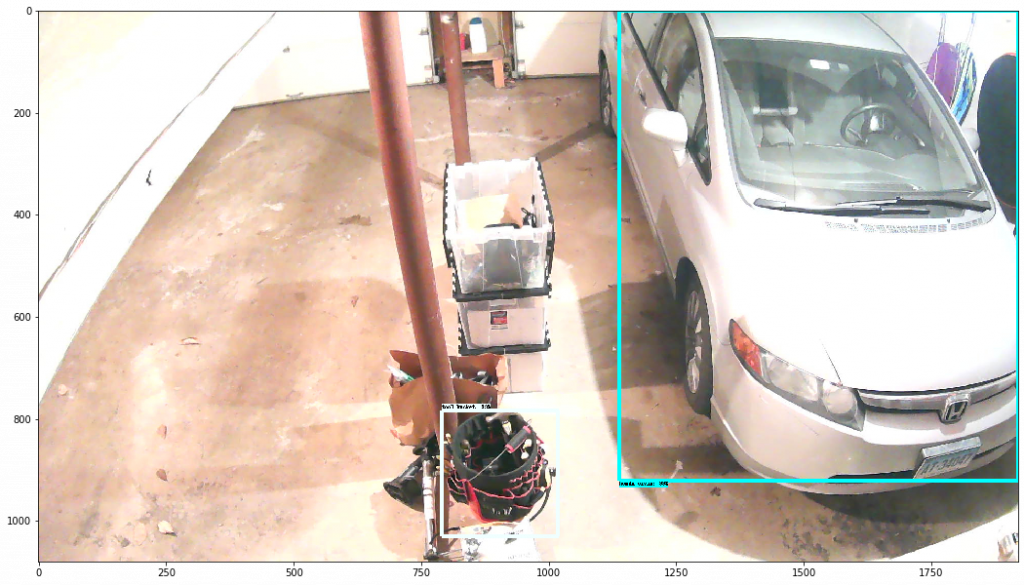
I keep a copy of the image and the response in case I need to retain the model. The image is sent over the jetson, where I have a Flask app running. I wasted a ton of time trying to get Flask to work, basically, if you use debug mode, then OpenCV doesn’t work because of different context loading. I could not seems to get Flask to keep the GPU opened for the life of the request, so on each request I open the GPU and load the model. This is quite inefficient as you may imagine. I also experimented with having the Raspberry Pi stream the video all the time over rtsp and then having ffmpeg save an image when it needs it. The problem seemed to be ffmpeg wasn’t always reliable. If I ran it for a single snapshot, it would not always capture an image. If I ran it continually, after some time it would exit. I have it trained to recognize four objects. If use my tool bucket as a source of truth. If it sees that, then I can assume it’s working, otherwise, I don’t have reliable enough information.

The scripts which I adapted are here: https://github.com/brianegge/garbage_bin

I’d like to use a ESP Cam to detect if a I have a package on my front steps. Maybe this will be my next project before I work on detecting deer.

Boiler Room Pipe Temperatures

I run SmartThings and Konneced for my home automation. I decided I could get some data on my boiler and hot water usage by monitoring the pipe temperatures with some cheap DS18B20 probes off Amazon.

Parts:
DS18B20 Five for $11.99 on Amazon
20′ of Shielded Low Voltage Security Alarm Wire
6′ of Aluminum tape
1 Mini PCB Prototype Board
1 4K7 resistor
A few shrink tubings

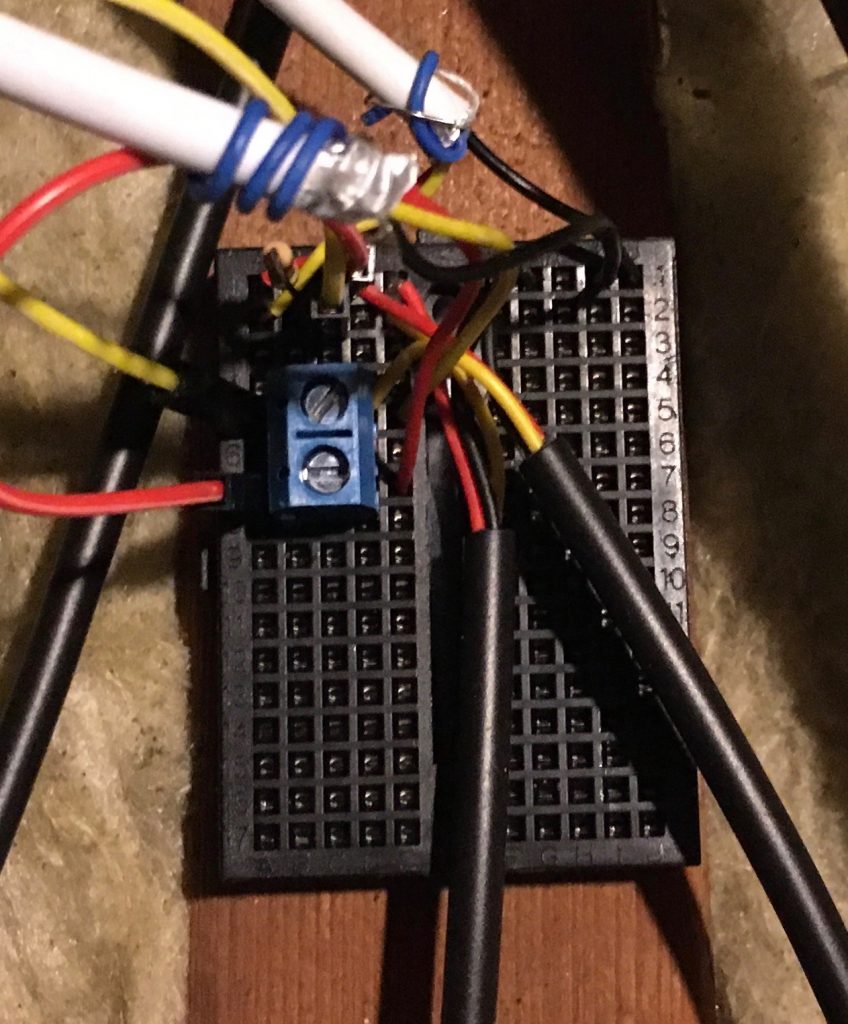
I used a Konnected add on board, put and connected my security wire to it. I tied the yellow wire to Pin 6, the black to the adjacent ground and the red to the +5v via a dupont wire. Next I ran the security wire over to my indirect hot water heater, where I connected two DS18B20’s and another cable over to my boiler. I used a prototype board because it was not an easy place to solder and though, I guess I could have done the soldering on the bench and then run the wire, as I did with my second run. I added the 4K7 pull up resistor here. I couldn’t get on of the yellow wires to insert into the prototype board, so I pushed in a header.

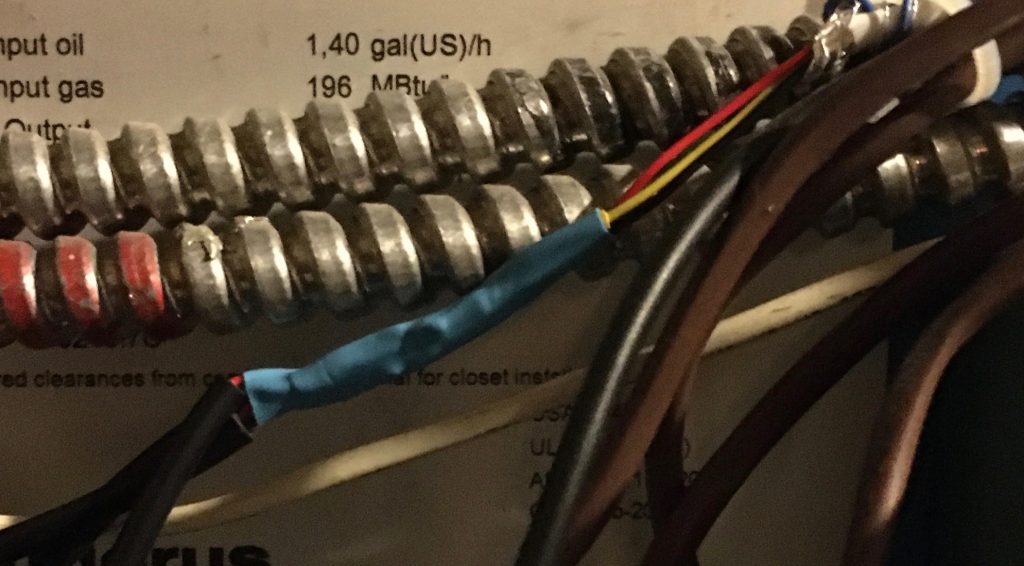
On my workbench I soldered three DS18B20 to one security wire and shrink tubed each wire plus a shink tube over all three. Effectively I have a star design.

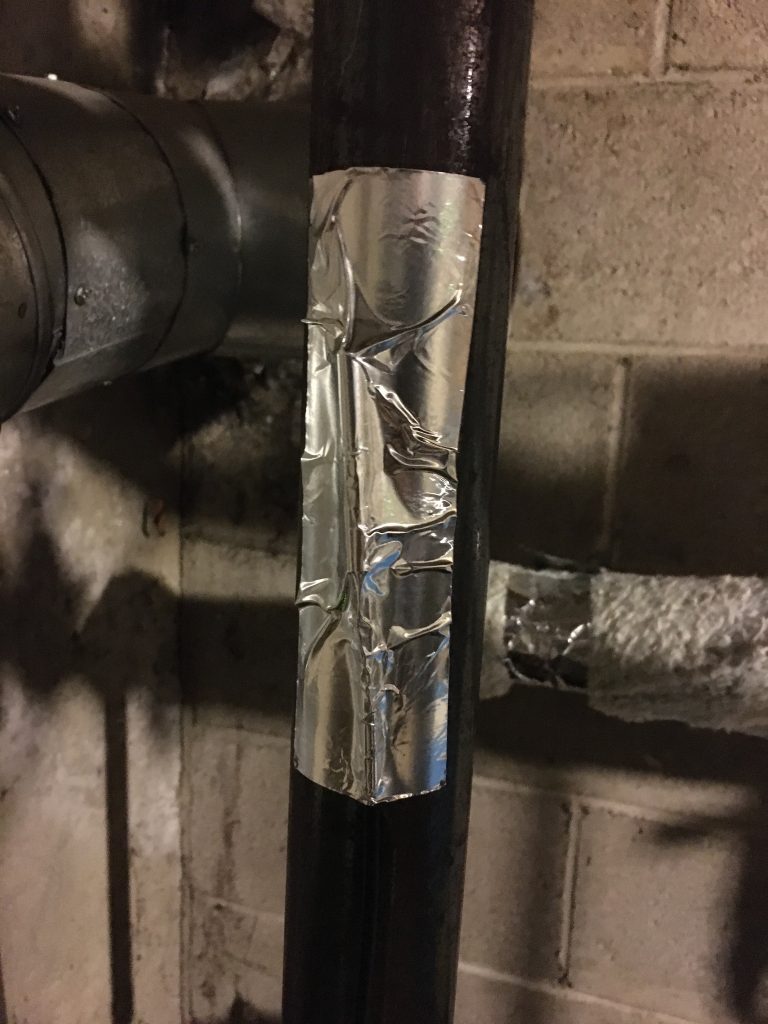
I placed the probes on the pipe an attached with aluminum tape. I then wrapped some insulation over the taped section.

I configured Konnected to poll every minute instead of every three. The devices appeared SmartThings shortly after I configured pin 6 to be a temperature probe.

My next task was to get the data recorded in my Raspberry Pi. For that I’m using InfluxDB and Grafana, following this guide: http://codersaur.com/2016/04/smartthings-data-visualisation-using-influxdb-and-grafana/

Smart Air Freshener

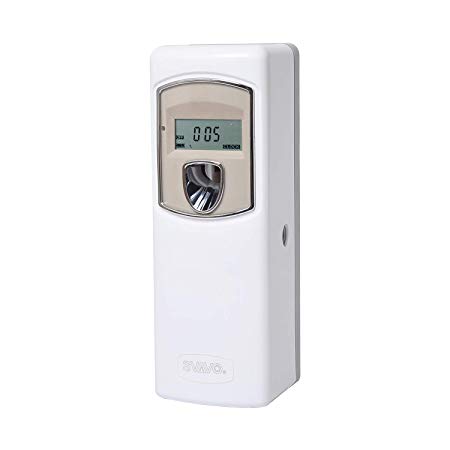
My wife asked for us to have an air freshener installed in the bathroom. I don’t like the plug in types, even if they don’t burn your house down. At my office we have air fresheners which run on a schedule, or maybe run 24×7, but seem to spray every fifteen minutes. I found a model on Amazon which was similar:

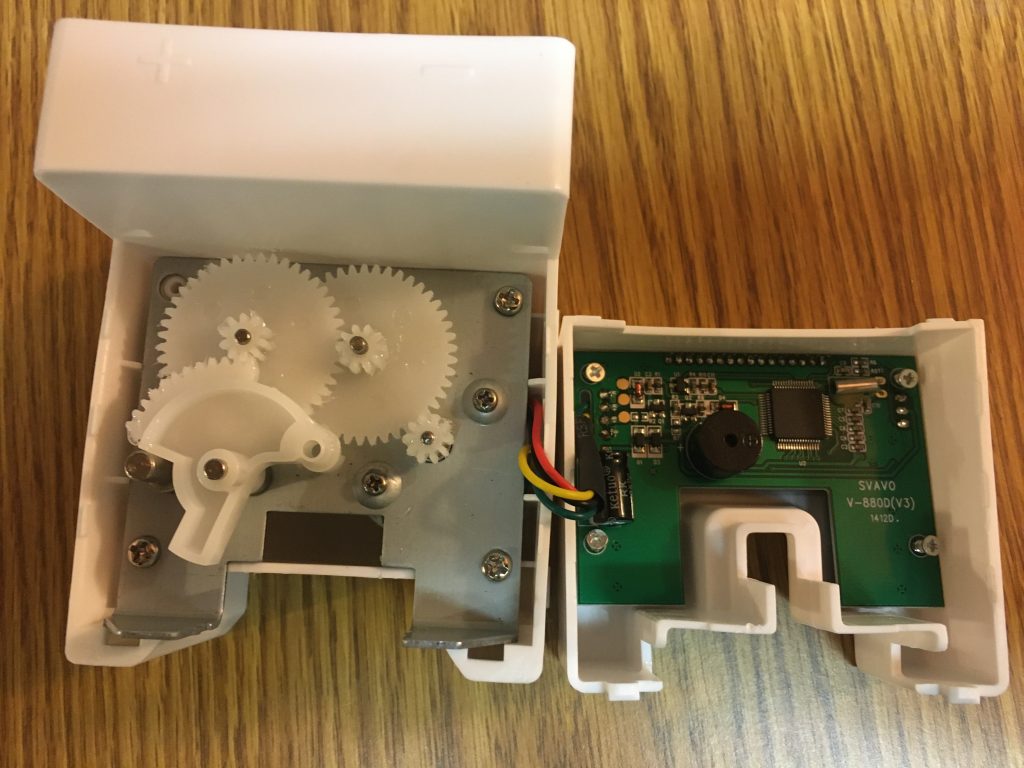
SVAVO Automatic LCD Fragrance Dispenser

This would probably work OK an in office, where you program it 9-5 M-F, but at home the schedule is not so easy. For one, we don’t want it going off when we’re asleep or not home. That’s trivial to set up a home automation to do that, but I could find no air fresheners which would connect to SmartThings.

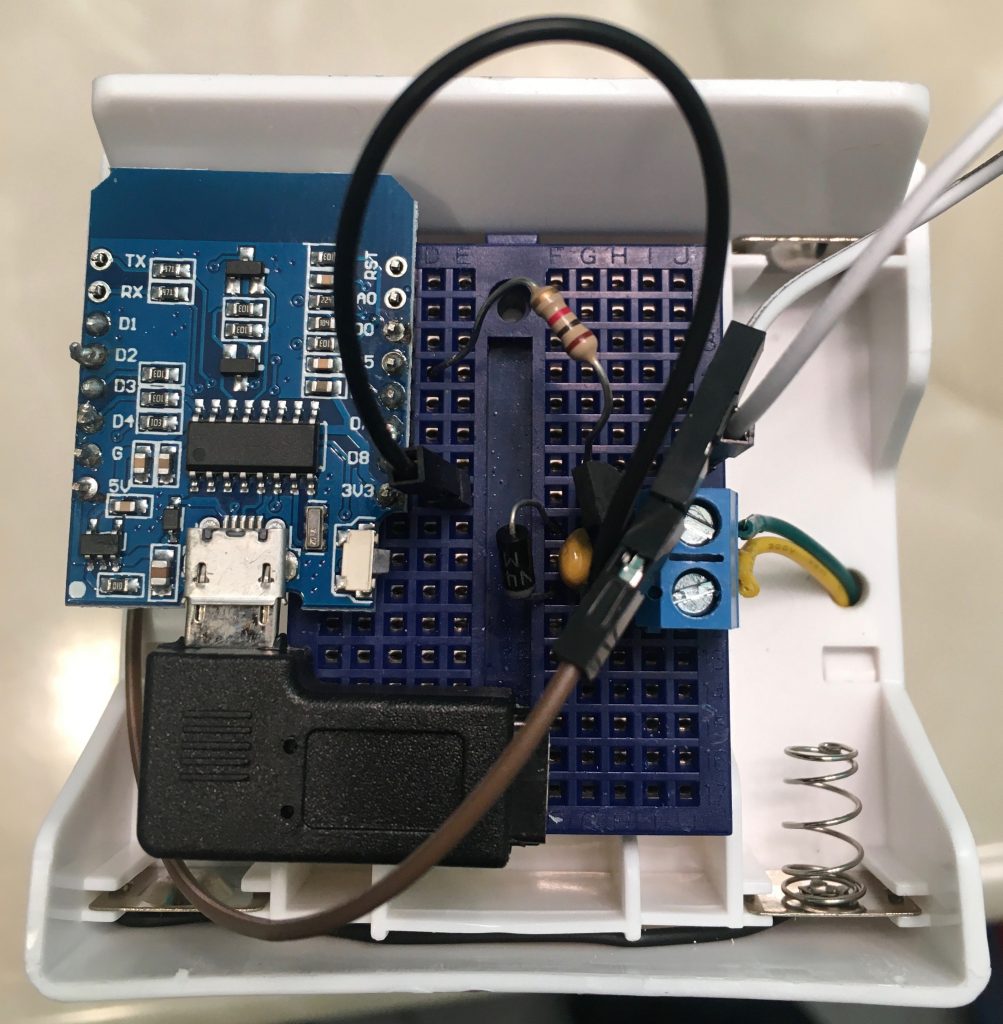
I decided to order the device and hack the motor to be controlled via SmartThings. Opening the device up, I found it ran on 3.2v via 2 AA batteries and had a simple PCB with two wires for the battery and two for the PCB. The PCB even had pads which I assume one could reprogram the controller. If the controller had a radio, my approach my have been to try to hack it. However, I assumed it didn’t, so I unsoldered the green(-) and yellow(+) wires from the motor.

It’s difficult to have a wifi device connected via batteries, so I decided I’d convert the device to run off of 5V micro-usb. This was easily powered via an ethernet cable and POE adaptor dropped down from my attic.

Wemos D1 Mini inside battery cabinet

Fortunately, the battery compartment had a generous amount of space. I decided to use the Wemos D1 Mini because of its small size and I flashed the Konnected firmware on. Using Konnected allowed for quick integration into SmartThings.

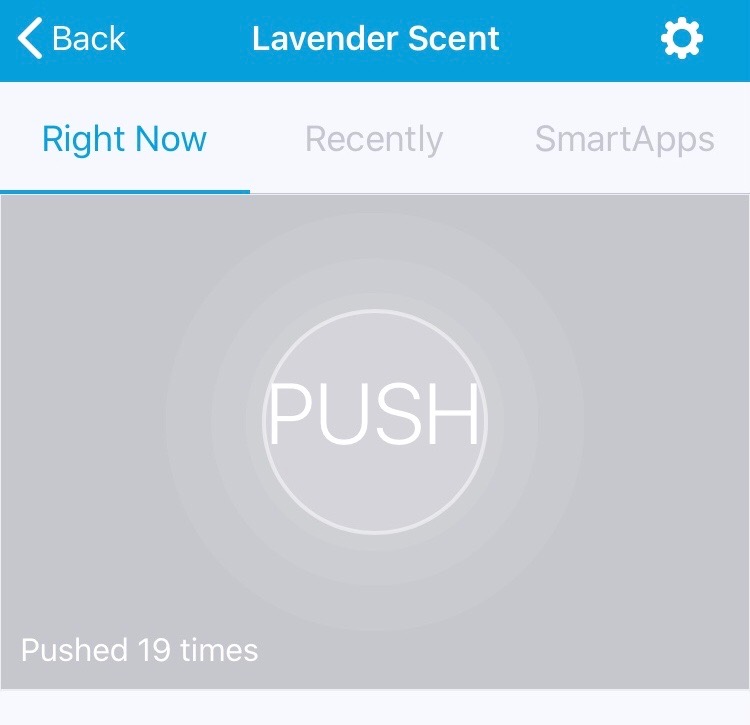
Once I had the software / hardware working, I mounted it on the wall. Because SmartThings has connections to Alexa and Google home, it was easy to get the voice assistants to activate the air freshener as well.

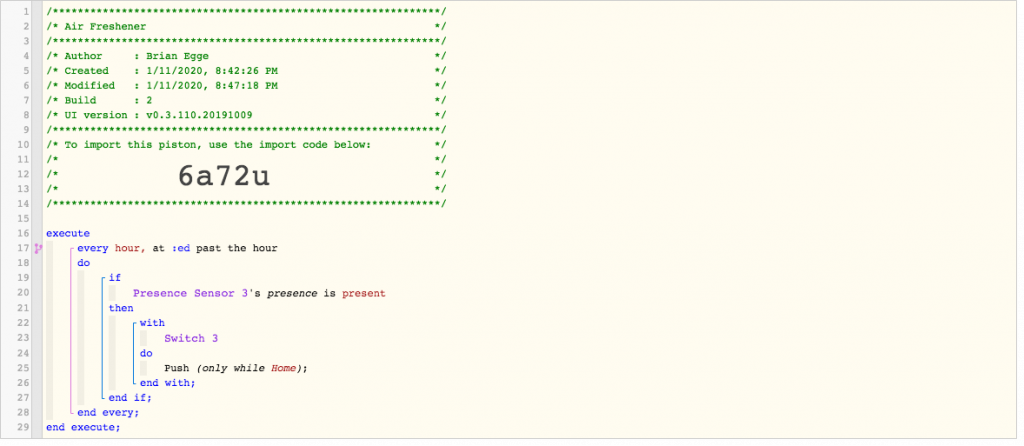
I created a basic piston to run it once an hour when my wife is home and not asleep. I also setup a routing to run it once when she first arrives home.

The Final Product!

Parts List:

I spent $35.97 on the air freshener and sprays, $21.64 on the parts for a total of $57.61. Most of the cost was my POE power supply and adaptor.

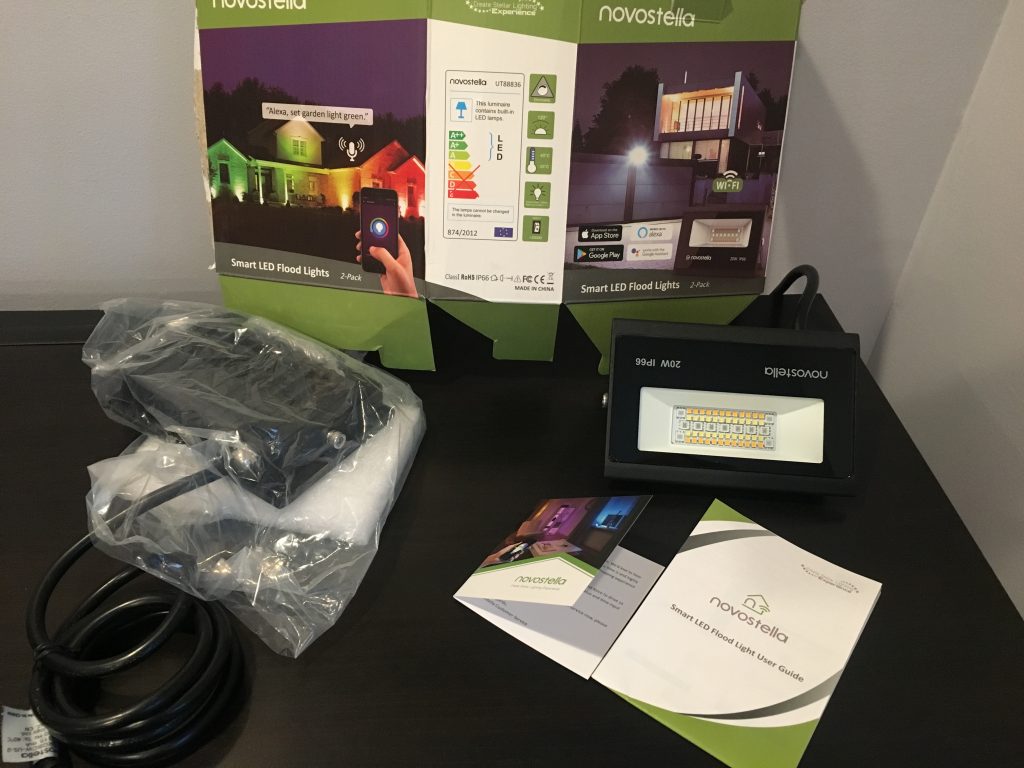
Connecting Novostella 20W Smart LED Flood Lights to SmartThings

I purchased of pair of LED flood lights for my home from Amazon. I’ve looked at the Philips Hue lights which look nice but are very expensive ($330). The Novostella were $35 each when I purchased them. The main problem with lights like this is they come with an app, and they can only be controlled from that app or applications which work with it’s cloud account. Changing the firmware should be easy and would allow it to work with any app or home automation system.

20W is very bright!

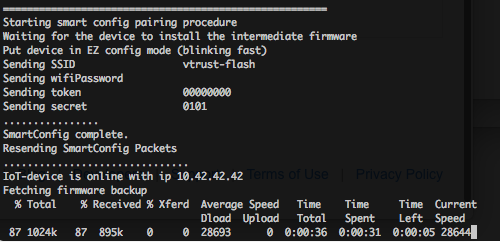
They appear to be ESP8266 based, so I should be able to flash them OTA using Tuya OTA. I used my Raspberry Pi 3 for the OTA flashing following this guide. The only issue I ran into is I plugged my lamp in too soon as it went out of the flashing light mode. There are no switches on the lamp, so the procedure is to plug in, unplug, plug in, unplug, plug in. Then it will resume blinking and the OTA software will work.

I found it’s quite important to attach the antennas before starting, otherwise, it may work but will be quite slow.

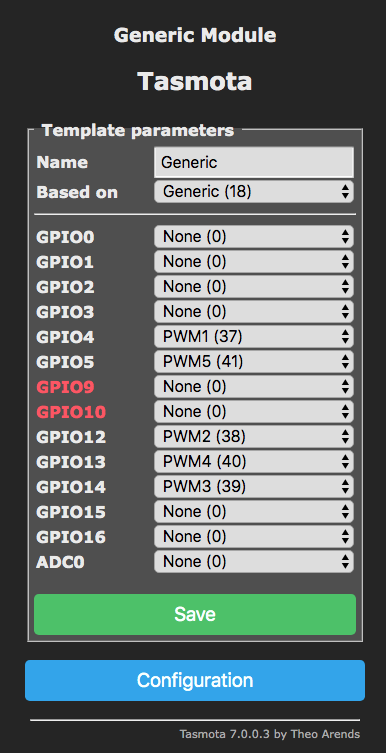
I checked my router for the device in the DHCP and connected to the web server. I setup the template as follows:

{"NAME":"Generic","GPIO":[0,0,0,0,37,41,0,0,38,40,39,0,0],"FLAG":0,"BASE":18}

The web UI lets you adjust the brightness and the white balance, but not the color. I tested the color command and got a nice blue:

Color 1845FF0000

Next, I wanted to connect to SmartThings. I installed this DHT https://github.com/GaryMilne/Tasmota-RGBCCT-DH-for-SmartThings-Classic-with-MQTT

I forked and installed the “Holiday Color Lights” SmartApp to automate changing the color of the lights with the season. It needs some work to be able to handle relative dates, like Fourth Thursday of the month. I modified it to use “white” for default when there isn’t a holiday.

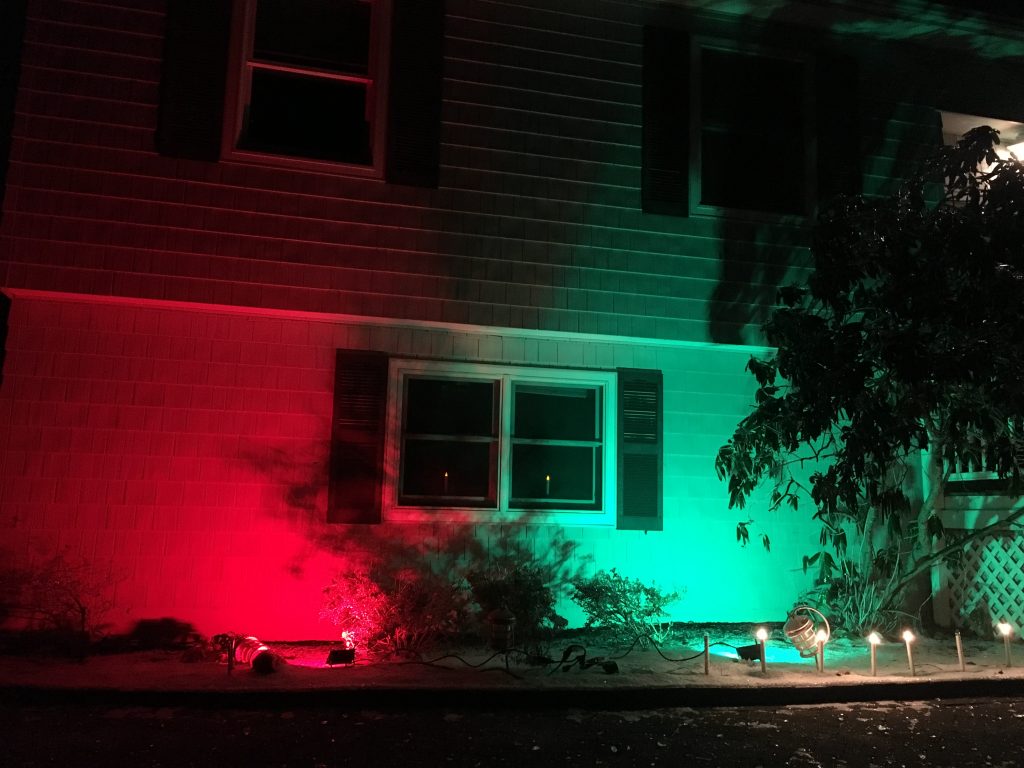
I think the end result looks pretty good. I’ll be ordering two more of these.

Replacing MR77A Fan Receiver with Hampton Bay Universal Wink Enabled White Ceiling Fan Premier Remote

My home came with a nice ceiling fan but no remote. The wall switch would turn the fan on/off, but it would only run at it’s slowest setting. I needed to replace the control or the fan so I could make use of it. Since I recently stated dabbling with home automation I decided to find a fan controller which I could control via SmartThings. I found the Hampton Bay Universal Wink Enabled device and it looked like it would work SmartThings and my fan. This fan control is also known as “King of Fans Wink Enabled White Universal Ceiling Fan Premier Remote Control“.

My plan was to replace whatever was in my lower canopy with the wink device. Reading the wink instructions, it says it’s designed to sit above the fan. Upon taking my fan apart, the cabling only supports having the receiver in the lower section of the fan.

Inside my canopy, I found an MR77A puck.

Before throwing the puck away, I needed to remove the cabling harness connector and also the capacitors. The puck works by using relays to control the capacitance on the starting/running loop. The greater the capacitance the faster the fan spins.

First, I wanted to get the fan going full speed with the puck removed. I took the three large capacitors and connected them in parallel to form a single one.

I tested the capacitance:

Then I soldered the leads along with two wires to my new capacitor:

My harness contained the following wires:

White (neutral to wall switch)
Black (hot to wall switch)
Thin black (antenna wire, absent from the fan connector)
Thin white (coil 1+)
Thin gray (coil 1-)
Thin brown (coil 2+)
Thin blue (coil 2-)

To run the fan without the wink module, I connected the black wire to the gray and brown wires and the white wire to the the thin white and to one side of the capacitor. The other side of the capacitor I connected to the blue wire. This mean when the circuit was powered, the white/gray circuit would get energized and the blue/brown would get power 90º shifted. With this setup, the fan operated on fast speed in a clockwise (summer) direction.

Once I proved the fan could work without the MR77A puck, I could then go on to getting the wink module connected. At this point I also wrapped my capacitors in electrical tape.

The wink module contained five labeled wires:

Right side:
Red (hot)
White (neutral)
Left side:
Black (fan hot)
Blue (light hot)
White (fan neutral)

I disconnected the thick white and black wired and attached the red and white wires to those. I then connected what had been connected to the thick black and white to the black and white wires on the left side of the wink module.

I plugged this into the fan and tested the included remote. This worked fine, though the lower two speeds hardly move the fan at all. The MR77A was a bit more clever in how it controlled the speed by adjusting the capacitance of the second coil.

When I first found the device in SmartThings it simply showed “Thing”. When I added it, it was stuck in “Please Wait”.

I found I needed to install the community written drivers for these fans. Fortunately, I had done this once before with Konnected, so I knew the process of how to add the Smart App and the Device Driver. The github repo is https://github.com/dcoffing/KOF-CeilingFan, so one add “dcoffing” for the GitHub user and “KOF-CeilingFan” for the project. After adding and publishing these I removed and added the fan again (going through the five 3-second on/off steps to reset the device). With this setup, I was soon able to control my fan:

With this working, I then replaced the metal canopy cover on the fan. The wink radio work fine however the remote control stopped working when the canopy was on. Unfortunately, the ‘antenna’ wire on the harness doesn’t go up the rod, so couldn’t route the antenna to the ceiling. Instead I drilled a 4mm hole in the metal canopy and pulled the antenna through. I found it had to be several inches outside the canopy on order for the remote to work from across the room.

I setup a virtual thermostat, using my Ecobee remote for both presence and temperature. My fan does not contain a light. If I’m ambitious, this winter I’ll open the fan up, and connect a polarity reversing relay to the light, that way I can reverse the fan using the ‘light’ switch. I’ll then customize my driver so instead of a light switch, it’ll present itself as a forward / reverse switch.

With that, my project was complete. Since it was non-trivial replacing the MR77A puck with the Hampton Bay device, I thought I’d share in case someone want to try the same.